
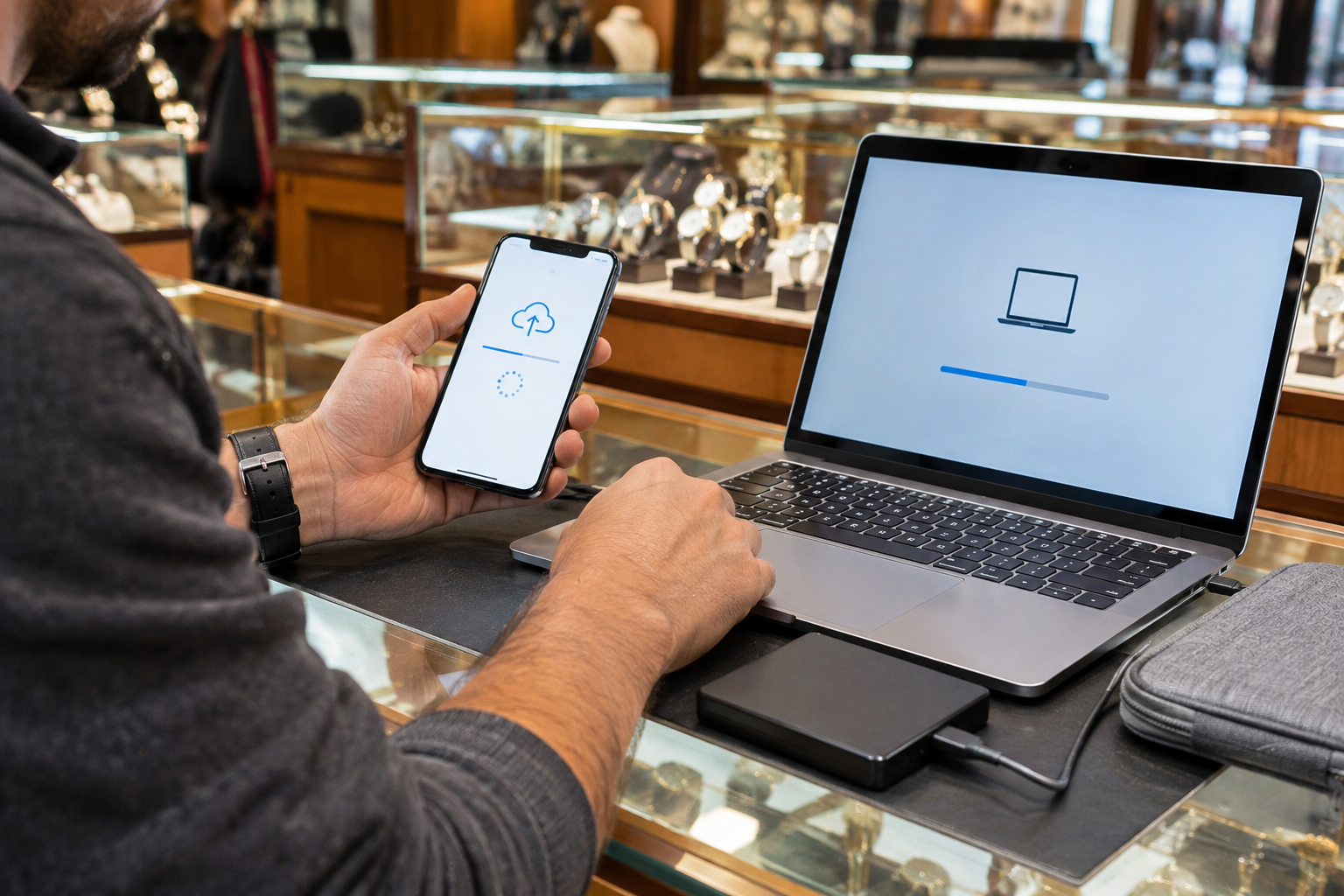
How to Wipe Your Phone or Laptop Before You Sell or Pawn It
November 25, 2026 8:45 pm Leave your thoughtsThat old phone sitting in your kitchen drawer might still have years of family photos, saved passwords, banking information, and personal conversations stored on it. The laptop you haven’t used since upgrading could contain everything from work documents to tax records. If you’re thinking about turning either device into cash at a pawn shop in Barberton, OH, there’s something you should do before handing it over: make sure your personal information is properly removed.
Knowing how to wipe your phone or laptop before selling it can help protect your privacy and make the device easier for its next owner to use. The process generally involves backing up important files, disconnecting personal accounts, removing activation locks, and completing a factory reset using the manufacturer’s recommended instructions. However, the specific steps depend on whether you’re using an iPhone, Android phone, MacBook, or Windows laptop.
Before selling or pawning your electronics, keep these important points in mind:
- Back up your photos, contacts, documents, and other important files before erasing anything.
- Barberton and Akron residents should remove personal accounts and activation locks before taking eligible electronics to a local buyer.
- Deleting individual files isn’t the same as properly resetting an entire device.
- Phones with carrier restrictions or outstanding financing obligations may require additional attention before resale.
- Customers throughout Summit County should verify that a reset has finished before transferring their devices to someone else.
At Sydmor’s Jewelry and Pawn Shop, we’ve served the Barberton community since 1949, offering local buying, selling, and pawning services that include electronics. Whether you’re upgrading to a newer device or clearing out things you no longer need, we want you to understand how to prepare your electronics before exploring their resale or pawn potential.
Why Should You Wipe Your Phone or Laptop Before Selling It?
You should wipe your phone or laptop before selling it because these devices can store sensitive information long after you’ve stopped using them. A proper reset helps remove personal data, disconnect accounts, and prepare the device for someone else without unnecessarily exposing your private information.
Think about everything you access through your phone or computer. Your device might contain banking applications, saved credit card details, private messages, family photographs, email accounts, browsing history, or business documents.
Simply deleting a few photographs or uninstalling your favorite applications doesn’t necessarily remove all that information. Some data may remain in other folders, application storage, or recoverable areas of the device.
Modern smartphones and computers often use encryption, which protects stored information by making it unreadable without the appropriate credentials. Properly resetting an encrypted device generally provides strong privacy protection, although the effectiveness of the process depends on the device, its storage technology, and the reset procedure.
For residents of Barberton, Norton, and Coventry Township planning to sell used electronics, following the correct steps before visiting a buyer is one of the simplest ways to protect personal information.
What Should You Do Before Factory Resetting Your Device?
Before factory resetting your device, back up everything you want to keep, confirm that the backup works, and identify any accounts or security features that need to be disconnected. Once the reset is complete, recovering information that wasn’t saved elsewhere may be difficult or impossible.
Back Up Your Important Files
Start by reviewing what you have stored on your device. You might be surprised by how much information has accumulated, especially if you’ve owned your phone or laptop for several years.
Important items to preserve include:
- Family photos, videos, and personal recordings.
- Contacts, calendars, and saved messages.
- Work documents, school assignments, and financial records.
- Passwords, authenticator accounts, and recovery information.
- Important application data and downloaded files.
You can use trusted cloud backup services, another computer, or an external storage drive, depending on your device. Before proceeding, open several backed-up files or verify that your backup service reports a successful completion.
Disconnect Personal Accounts and Services
Next, review the accounts connected to your device. These might include Apple, Google, Microsoft, Samsung, and other services that synchronize information across multiple devices.
Some accounts also control anti-theft protections that prevent unauthorized users from activating a device. Removing these restrictions through official procedures is particularly important when preparing an electronic device for resale.
If you’re using a work-issued or school-managed device, contact the organization responsible for it before attempting a reset. Management restrictions may remain active, and you might not have permission to transfer the equipment.
How to Wipe an iPhone Before Selling or Pawning It
To wipe an iPhone before selling it, back up your data, sign out of your Apple Account where appropriate, and use the built-in Erase All Content and Settings feature. This process removes personal information and, when completed correctly, disables Find My and Apple’s Activation Lock.
Follow these steps to prepare your iPhone:
- Back up your information. Use iCloud or a computer to save anything you want to keep, and confirm the backup is complete.
- Unpair connected devices. If you use an Apple Watch, unpair it using Apple’s recommended procedure.
- Sign out of your Apple Account. Open Settings, select your name, and choose Sign Out. Follow any authentication prompts.
- Open the reset menu. Go to Settings, General, and Transfer or Reset iPhone.
- Erase the device. Select Erase All Content and Settings, then follow the instructions to complete the reset.
- Address cellular service. Remove a physical SIM card if applicable, or choose to erase the eSIM profile when prompted if you’re transferring the phone and won’t need that profile.
- Confirm the reset. Check that the phone displays its initial setup screen and isn’t still associated with an activation restriction.
Apple’s official guidance explains that completing this process removes personal content from the device and turns off Activation Lock. Your information stored separately in iCloud isn’t deleted simply because you erase the iPhone.
If you’re wondering how to erase a phone before pawning it in Barberton, these same steps can help prepare an iPhone for evaluation. However, if you’re planning to redeem a pawned device later, make sure you’ve preserved everything you’ll need to restore your information.
How to Factory Reset an Android Phone Before Selling It
To factory reset an Android phone before selling it, create a backup, remove your Google Account and any applicable manufacturer accounts, and use the factory reset option in Settings. Following the proper sequence helps prevent account verification problems when the next owner attempts to activate the device.
The exact menus vary between Samsung Galaxy, Google Pixel, Motorola, and other Android phones.
For Google Pixel Phones
Google’s current instructions generally recommend the following process:
- Back up your photos, contacts, application data, and important files.
- Open Settings and locate Passwords & accounts.
- Select your Google Account and choose Remove account.
- Return to Settings and select System.
- Choose Reset options, followed by Erase all data (factory reset).
- Confirm the reset and allow the device to finish restarting.
For Samsung Galaxy Phones
Samsung’s factory reset process typically begins in Settings under General management. From there, select Reset, followed by Factory data reset, and complete the confirmation steps.
Before starting, review your Google and Samsung accounts and follow the manufacturer’s instructions for disconnecting them. Samsung devices may require account credentials during the process.
Android phones often include Factory Reset Protection, a security feature designed to prevent unauthorized use after certain resets. If a previous account remains associated with the phone, the next user may encounter an account verification screen.
For Akron and Barberton residents, resolving these restrictions before visiting a pawn shop can help avoid unnecessary complications. Never attempt to bypass someone else’s account protections or provide your passwords to a buyer.
How to Reset a Windows Laptop Before Selling It
To reset a Windows laptop before selling it, back up your files and use Microsoft’s Reset this PC feature with Remove everything selected. When available, enabling the Clean data option provides additional protection by making removed files more difficult to recover.
For most Windows 11 computers, follow these steps:
- Open Settings and select System.
- Choose Recovery and locate Reset this PC.
- Select Reset PC.
- Choose Remove everything rather than Keep my files.
- Select the available reinstall option and review the additional settings.
- Enable Clean data when offered.
- Confirm your choices and allow Windows to complete the process.
The Clean data option is designed for consumers preparing a computer for resale or disposal. Microsoft cautions that it isn’t intended to meet specialized government or industry data-erasure standards.
Before resetting your laptop, also consider removing it from your Microsoft account’s device list and reviewing any linked subscriptions or organization-management settings.
If you’re preparing an older computer for sale in Barberton or Wadsworth, don’t forget to check for removable memory cards, external drives, or other storage devices. A Windows reset won’t necessarily erase every separately connected storage device.
How to Wipe a MacBook Before Selling or Pawning It
To wipe a compatible MacBook before selling it, use Apple’s Erase All Content and Settings feature after backing up your files. This built-in option removes personal information, signs you out of Apple services, and disables Find My and Activation Lock when completed successfully.
On compatible Macs running macOS Ventura or later, open the Apple menu and follow these steps:
- Select System Settings.
- Choose General.
- Open Transfer or Reset.
- Select Erase All Content and Settings.
- Enter your Mac’s administrator credentials when requested.
- Follow the onscreen instructions to complete the process.
This feature is available on compatible Macs with Apple silicon or the Apple T2 Security Chip running macOS Monterey 12 or later. Older systems may require different procedures, including signing out of Apple services and using macOS Recovery to erase and reinstall the operating system.
Apple recommends following its model-specific instructions when the built-in erase feature isn’t available. Avoid experimenting with unfamiliar disk-erasing tools, especially if you’re unsure whether the computer uses an older hard drive or a newer solid-state drive.
What Mistakes Should You Avoid When Preparing Electronics for Resale?
The biggest mistakes when preparing electronics for resale involve skipping backups, overlooking account locks, and assuming a device is ready simply because the home screen looks empty. Taking a few extra minutes to verify the reset can help prevent information loss and problems during evaluation.
Watch out for these common mistakes:
- Deleting photos manually instead of resetting the device: Personal information may remain elsewhere, so use the proper system reset procedure.
- Forgetting to back up important documents: Once the reset finishes, local files may no longer be recoverable.
- Leaving Apple Activation Lock enabled: A new user may be unable to activate the device without the original account credentials.
- Overlooking Android account protection: Factory Reset Protection can prevent setup if the required account verification hasn’t been addressed.
- Choosing Keep my files on Windows: This option preserves personal files and isn’t intended for transferring ownership.
- Leaving SIM or memory cards installed: Removable cards may contain additional personal information that the reset doesn’t erase.
- Assuming a reset removes carrier restrictions: Network locks, financing obligations, and account restrictions require separate attention.
For those selling electronics in Summit County, another common concern is evaluating a device before it’s fully prepared. Although buyers may need to confirm functionality, you should never hand over sensitive passwords, security codes, or access to your personal accounts.
If you run into an activation problem, use the manufacturer’s official account recovery or technical support process. A legitimate reset shouldn’t require bypassing anti-theft protections.
What Happens When You Bring a Phone or Laptop to a Pawn Shop?
Bringing a phone or laptop to a pawn shop generally involves confirming that the device is eligible, presenting it for evaluation, and reviewing any available purchase or pawn loan offer. Buyers may consider the device’s age, specifications, condition, functionality, and current resale demand.
At our Barberton shop, electronics are among the merchandise categories we handle, although acceptance of individual smartphones, laptops, and tablets depends on our current purchasing policies. We recommend contacting us before visiting to confirm whether we’re considering your particular device.
For an eligible electronic item, factors that may influence an evaluation include:
- Brand and model: The manufacturer and specific device model can influence resale demand.
- Age and specifications: Storage capacity, processor performance, and available features may affect interest.
- Physical condition: Cracked screens, broken keyboards, damaged charging ports, and other issues can influence value.
- Battery health: A device that struggles to hold a charge may have different resale potential.
- Account status: Devices with unresolved activation locks or ownership restrictions may not qualify for purchase.
- Accessories: An original charger or other compatible accessories may help complete the package.
If you’re selling rather than pawning, an accepted offer generally involves transferring ownership of the device. Pawning is different because you’re using the item as collateral for a loan, with the opportunity to reclaim it under the agreed repayment terms.
Neither option guarantees a particular payment amount, and a factory reset alone doesn’t increase a device’s underlying market value. However, completing the appropriate preparation can make it easier to establish that an eligible device is ready for its next user.
Frequently Asked Questions About Wiping Electronics Before Selling Them
Do I need to factory reset my phone before selling it in Barberton, OH?
Yes, you should properly erase your personal information before transferring ownership of a smartphone. A factory reset performed through the manufacturer’s recommended procedure is generally the appropriate approach. First, back up your important data and remove applicable account restrictions so the next owner can activate the device.
Can someone recover my information after a factory reset?
A properly completed reset on a modern encrypted device generally provides strong protection against ordinary attempts to recover personal data. However, protection varies by device, storage type, and reset method. For computers containing highly sensitive business or financial information, additional professional data-erasure guidance may be appropriate.
Should I remove my SIM card before selling my phone near Akron?
Yes, remove your physical SIM card before transferring the phone unless your carrier specifically directs otherwise. SIM cards may contain account-related information and can remain connected to your cellular service. If your phone uses an eSIM, follow your carrier’s and manufacturer’s instructions for removing or transferring the cellular profile.
Does a factory reset remove an iCloud or Google account?
A properly completed reset can remove account information from the device, but you must also address applicable activation and anti-theft protections. Apple’s official erase process turns off Activation Lock when completed correctly. Android users should follow the manufacturer’s account removal and reset instructions to avoid Factory Reset Protection problems.
Can I pawn my laptop without deleting everything?
Pawn shop requirements vary, but protecting your information should remain a priority even when you intend to reclaim the laptop. Back up personal files and ask about the shop’s device preparation requirements before proceeding. If the laptop contains sensitive information, a proper reset may be the safer option.
Do pawn shops buy older smartphones and laptops in Summit County?
Some pawn shops purchase older electronics, but acceptance depends on the device’s condition, functionality, resale demand, and the buyer’s policies. Older equipment with limited software support or significant damage may be less desirable. Contact us to discuss your device before traveling to our Barberton location.
What if my phone won’t turn on or I can’t reset it?
If your phone won’t turn on, a standard factory reset may not be possible until the problem is resolved. Check the manufacturer’s official support instructions and consider authorized repair assistance if necessary. Don’t assume that a broken screen or dead battery means your personal information is inaccessible.
Will wiping my laptop increase what I can sell it for?
Wiping your laptop doesn’t automatically increase its resale value, but it can help prepare the computer for transfer and evaluation. Buyers typically consider factors such as age, specifications, condition, and demand. A reset also helps avoid the inconvenience of leaving personal accounts connected to the device.
Get Your Electronics Ready Before Visiting Sydmor’s Jewelry and Pawn Shop
Whether you’re upgrading your smartphone, replacing an aging laptop, or clearing out electronics you haven’t used in years, preparing your device properly is worth the effort. Backing up your information, removing account restrictions, and completing the correct reset can help protect your privacy while making the selling or pawning process easier to navigate. Even if you’re comfortable with technology, it’s smart to double-check the manufacturer’s instructions because reset procedures can change between devices and operating system versions.
At Sydmor’s Jewelry and Pawn Shop, we’re proud to have served Barberton, OH, since 1949. We welcome customers from Akron, Norton, Wadsworth, Doylestown, Green, and surrounding Summit County communities who want to explore their options for selling or pawning eligible electronics. Before bringing in your smartphone, laptop, or tablet, contact us to discuss current acceptance requirements and what you’ll need for an evaluation.
Ready to Turn Your Unused Electronics Into Cash?
Have a phone or laptop you no longer need? Call us at 330-753-6812 or visit 131 2nd Street NW in Barberton, OH, to ask about our current electronics buying and pawning options. We’ll help you understand the next steps so you can decide what makes sense for your device.
Categorised in: Pawning Tips
This post was written by admin